
Music Store is an online store for selling audio files: music, speeches, narratives, everything audio. With Music Store your sales will be safe, with all the security PayPal offers.
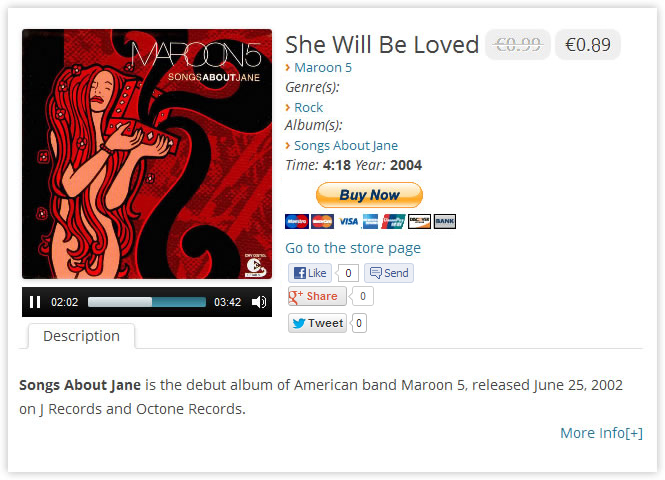
Music Store protects your audio files, preventing them from being downloaded without permission.
Music Store includes an audio player compatible with all major browsers: Internet Explorer, Firefox, Opera, Safari, Chrome and mobile devices: iPhone, iPad, Android. The Music Store audio player supports the following file formats: MP3, WAV, WMA and OGA.
Main Features:
To install Music Store, follow these steps:
Music Store can be set up via the menu: "Settings / Music Store". The setup screen offers general settings for the Music Store, allows to enter PayPal data to process sales, and texts necessary for email notifications.
The setup interface includes the following fields:
Music Store URL: Enter the URL of the webpage where the Music Store is inserted. The URL of the store will be used to return from the product page to the store page.
Allow to filter by type: Inserts a field into the Music Store webpage that allows to filter products by type (including Singles, Collections or all products)
Allow to filter by genre: Inserts a field into the Music Store webpage that allows to filter products by their genre.
Allow multiple pages: Allows paging of music store products.
Items per page: Defines the number of products per page in the Music Store.
Player style: Select the audio player style from the list.
Percent of audio used for protected playbacks: Percent of audio to play in secure mode.
Explain text for protected playbacks: Text displayed below the music player in secure mode.
Share in social networks: Display a group of buttons for sharing the songs and collections in the social networks(like Facebook, Twitter and Google+)
Enable PayPal Payments: Allows the sale of products through PayPal.
PayPal email: Enter the email address associated with the PayPal account.
Currency: Symbol of the currency in which payments are accepted.
PayPal Language: Preferred language of the PayPal interface.
PayPal button: Select the PayPal button design.
or use a shopping cart: Allows to include multiple audio files in the same purchase.
Allows to pack all purchased audio files as a single ZIP file.
Display discount promotions in the music store page: Allows to display all discounts promotions at the bottom of music store.
Percent of discount: Enter the percent of discount to the sell price.
Valid for sales over than: Condition for apply the discount.
Valid from: First day to apply the discount rules.
Valid to: Last day to apply the discount rules.
Promotional text: Text for promote the discounts.
Percent of discount: Enter the percent of discount to the sell price.
Coupon: Enter a valid coupon code.
Valid from: The coupon is valid from start date.
Valid to: The coupon is valid until end date.
Notification "from" email: E-mail address that will appear as the sender of notifications.
Send notification to email: Email address where a notification is sent after each sale.
Subject of user confirmation email: Subject of the confirmation email sent to the customer when making the purchase.
Email confirmation to user: Body of message sent to the client when making the purchase.
The message should include the tag %INFORMATION% which will be replaced by the purchase data.
Subject of email notification to admin: Subject of email notification sent to the administrator when a purchase is made.
Email notification to admin: Body of the email message sent to the administrator when a purchase is made. The message text should include the tag %INFORMATION%, which will be replaced by the purchase data.
Two types of products can be sold through the Music Store: songs or collections.
To enter a song in the store please press the menu option "Music Store Song" to open the relevant section. Initially it displays the list of songs entered previously and a set of data associated with the song (Fig.1)

Fig.1 Music Store Song Section
To enter a new song press "Add New".
The interface for entering data pertaining to a song is described below (Fig. 2):

Fig.2 Song Edition Interface
Enter Title Here: Enter the title of the song.
Description: Description of the song. This field is optional, but offers the opportunity to provide additional information about the song or the authors.
Sales Price: Retail price of the song.
Comes as a single: To allow sale of song as a single, mark the checkbox. If the checkbox is left unchecked, the song can only be sold as part of a collection.
Audio file for sale: URL of the audio file to sell. The button associated with the field displays the WordPress media gallery making it easy to select the file.
Audio file for demo: URL file audio demo. The button associated with the field displays the WordPress media gallery making it easy to select the file.
Protect File: Checkbox that enables secure playback of the song to avoid being downloaded while testing. The safe playback is created by cutting the track and not allowing it to download completely. Users who try to steal audio files, only get a snippet of the song.
Note: If a song is not defined as demo but the Protect File field is marked, then this file will also be used for demo purposes.
Artist: Select the artist (or artists) from the list or enter a new one if it is not yet on the list.
Album including the song: Select the album or albums where the song is included or enter a new one.
Note: The album field is purely informative and has no impact on collections for sale.
Cover: URL of the cover image. The button associated with the field displays the WordPress media gallery making it easy to select the file.
Duration: Enter the duration of the song.
Publication Year: Enter the year of the song.
Additional Information: URL of a webpage with additional information about the song.
To define discounts in product's price for specific dates.
New price: The price of product in discount dates.
Valid from: First day of discounting.
Valid to: Last day of discounting.
Promotional text: Text for promote the discounts.
The column on the right includes a form to enter the song's genre.
To enter a song in the store, please press the menu option "Music Store Collection" to open the relevant section. It initially displays the list of collections entered previously, as well as a set of data associated with the track (Fig. 3)

Fig.3 Music Store Collection Section
To enter a new song press the "Add New".
Collection setup interface(fig.4)

Fig.4 Collection Edition Interface
Enter Title Here: Enter the title of the collection.
Description: Description of the collection. This field is optional, but provides the opportunity to enter additional information on the collection or authors.
Sales Price: Retail price of the collection.
Songs of collection: Select songs to be sold as part of the collection. The songs must have been previously defined in the section of songs and be public. If the song is still being edited, it can not be added to the collection.
Artist: Select the artist (or artists for the collection) from the artists list or enter a new one if it is not yet on the list.
Cover: URL of the cover image. The button associated with the field displays the WordPress media gallery making it easy to select the file.
Publication Year: Enter the year of the collection in case it represents an album.
Additional Information: URL to a webpage with additional information on the collection.
To define discounts in product's price for specific dates.
New price: The price of product in discount dates.
Valid from: First day of discounting.
Valid to: Last day of discounting.
Promotional text: Text for promote the discounts.
The column on the right includes a form to enter the collection's genre.
The Music Store can be posted on a page or post of WordPress. To insert the Music Store go to the relevant section (page or post) and select where you want the Music Store, or create a new page / post.
In the editing section of the page/post, press the Music Store insertion button (Fig. 5), the action displays a setup screen (Fig. 6)

Fig.5 Music Store Insertion Button

Fig.6 Music Store Insertion Interface
Filter results by products type: by default, displays only products that belong to a specified type.
Columns: Defines the number of columns for the store products.
Filter results by genres: By default, displays the products filtered by specified genre.
Filter results by artist: Displays the products filtered by artist.
Filter results by album: Displays the products filtered by album.
The insertion process generates a shortcode which will be replaced by the store when it is displayed on the website.
Note: After inserting the store on a page of your WordPress, it is advisable to copy the URL of the relevant page, and enter in the Music Store's setup section, to allow the users to return to the store from the product page.
When a sale takes place, a notification email is sent to the Music Store administrator. However, sales can also be reviewed in Sales Reports. To do this, go to the stores’ setup page: "Settings / Music Store" and once there, open the section "Sales Reports" (Fig. 7)

Fig.7 Sales Reports
The Reports section allows you to filter sales reports over a specific period, by default it shows the current day's sales. It also shows sales’ totals for the selected period and the currency of the sales (Fig.8)

Fig.8 Filtering Sales Report
You can delete a sales report from the list of sales. This may be useful in case of a refund granted to a buyer, and allows to keep your sales statistics updated with the actual figures.